Documentation
Everything here is done in the browser. Follow the five numbered steps and you will have a working assistant that checks with you before it does anything you would rather approve first.
Run it
You need Docker. That is the whole list — and if you do not have it, the command below offers to install it.
macOS and Linux
curl -fsSL https://heddled.com/install.sh | sh
Windows, in PowerShell:
irm https://heddled.com/install.ps1 | iex
The script checks for Docker, downloads Heddled into a heddled
folder, starts it, and waits until it answers before telling you it is ready.
It asks before installing anything and will not write over a folder that is
already there. Reading a script before piping it to a shell is a good habit:
both are plain files, so curl -fsSL https://heddled.com/install.sh
on its own prints it.
Or do it by hand
Nothing above is magic. It comes down to:
git clone https://github.com/heddled/heddled
cd heddled
docker compose up
Set HEDDLED_PORT first if 5005 is taken. The install script
takes the same setting.
That is the console, the API, the record of everything, and the background
worker, together. Open http://localhost:5005.
The script also builds the second container Jarvis
uses for its terminal. It shares its base with Heddled, so it costs about
100MB and a sleeping process, and it means the terminal simply works if
you ever switch Jarvis on. Set HEDDLED_JARVIS=0 to leave it
out. Heddled is the same either way — Jarvis stays off until you turn it
on in Settings.
The first time, it asks you to claim it — pick a username and password. That account is the administrator. Do this immediately if the machine is reachable by anyone else: an unclaimed Heddled lets whoever arrives first become the administrator.
You do not need an account with an AI provider to follow this guide. The built-in stand-in works offline and is enough to see a whole conversation, an approval and a full record.
1 · Give it something to do
An assistant on its own can only talk. To be useful it needs actions — one thing each: look a customer up, check a list, send a message. Actions are shared, so the same one can be given to several assistants.
Go to Tools → New tool and pick the kind you need. Most need no code at all.

Pick Look something up and you get a form: a name, what it does, what it needs to be told, and the list to search. The description matters more than it looks — it is what the assistant reads when deciding whether this is the right action for the question in front of it.

Check it works before anything depends on it
Every action has a Test tab that runs it on its own — no assistant, no AI, no conversation. Put in some arguments, press Run, and see exactly what comes back.

2 · Make the assistant
Agents → New agent. Five short steps:
- A name — lowercase, no spaces. It can be changed later, and everything pointing at it follows.
- How it should behave — plain language, as if briefing a new colleague. Say what it is for, what to always do, and what never to do.
- What it may use — tick the actions from step 1.
- What needs your approval — only offers what you ticked above.
- Which model — leave the stand-in for now if you have no key.

Afterwards, everything is on the assistant's own page. What it can do shows what is chosen as removable labels, with the full list folded behind a search — useful once you have more than a handful.

3 · Try it
Press Try it and say something. The panel beside the chat fills in as it works — the question arriving, each action it runs, and the reply going back.

If the assistant ignores an action you expected it to use, the usual cause is the action's description, not the assistant's instructions. Make the description say plainly what question it answers.
4 · Read what it did
Open any conversation under Activity. What happened is the plain-words account: who asked, what was looked up, what came back, what was said. That is usually all you need.
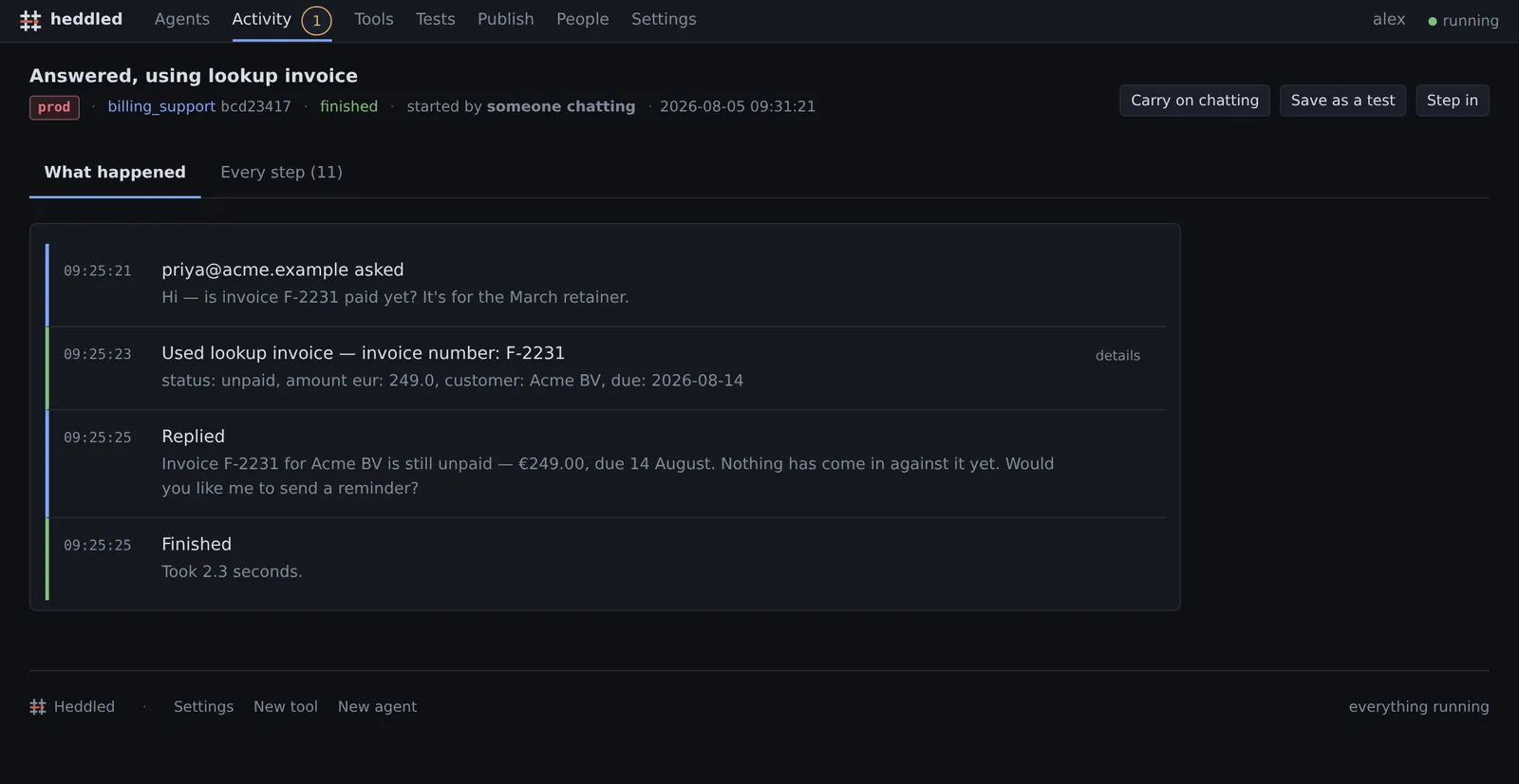
Every step beside it has the underlying record — the exact context the model was sent, every argument, every result, timings and token counts. Press j and k to move between steps, Enter to expand one.

Two other things live on this page: Step in adds a note to a running conversation as though the assistant had been told it, and Save as a test keeps the conversation to replay later — see Save a test.
5 · Make it check with you
On the assistant's page, under What it checks with you first, add a rule: choose the action, tick ask me first, and optionally cap what it may spend in a day or hide sensitive fields from the record.

Now the assistant stops before that action and waits. The platform holds the turn — this is not an instruction the model could talk itself out of.

The request also goes wherever you set up under Settings → Where things go: a webhook, Slack, or just the console. Whoever approves gets a link that needs no account.
Rules and limits
Step 5 used the simplest rule there is: ask me first. The same screen — What it checks with you first, on the assistant's page — carries four more, and they apply whether the conversation was started by a person, a schedule, or another system. That is the point of putting them here rather than in the instructions: instructions are a request to the model, and rules are not.
Each rule names an action, or * for every action the assistant
has.
Spending limits
Three caps, and you can set any combination:
| Cap | Counts |
|---|---|
| Per day | Everything this assistant spent today — model calls plus any cost you declared on an action. |
| Per conversation | The same, but for one conversation. Catches a loop that a daily cap would not notice until it had run all day. |
| Tokens per conversation | Length rather than money. Useful when you have no per-token price to hand. |
Model spend is counted for you from what the provider reports. An action
with a real cost per call — a paid lookup, a credit check — can declare it in
its file as cost_eur, and it then counts against the same
budget.
How often it may run
A rate limit is a number of calls and a window: at most 5 times per 60 seconds. It counts calls to that one action by that one assistant. Reach for it when the far end has its own limit you would rather not discover, or when an action costs someone else something each time — an SMS, a courier booking, a page to whoever is on call.
Keeping sensitive values out of the record
Heddled writes down every step, which is the point — and it is also why some things must not be written down. Redaction runs at the boundary where the record is stored: the assistant still works with the real value, and the stored trace never contains it.
| Rule | Matches | Stored as |
|---|---|---|
| Email addresses | «email» | |
| iban | Bank account numbers | «iban» |
| creditcard | 13–19 digit card numbers, spaced or hyphenated | «card» |
| phone | Phone numbers, with or without a country code | «phone» |
| bsn | Nine-digit national numbers | «bsn» |
Put these on * rather than on one action. A card number is just
as sensitive when it arrives in a question as when it comes back from a
lookup.
Redaction is a pattern match, not an understanding. bsn catches any nine-digit number, which will also catch some order references. That is the right way round for a privacy rule — but check a real conversation afterwards rather than assuming it caught what you meant.
Who is allowed to ask
When other systems can reach an assistant, a rule can limit an action to particular callers — or leave it open to your own use while gating it for outside ones. The same applies to channels, so an action can be available in the console but not over a webhook.
This only means anything once you have issued keys to callers, which is under Let other systems in. The identity is recorded on the conversation, so a turn resumed days later is still judged against the caller that started it.
What happens when a limit is hit
The action does not run, and the assistant is told why — daily budget exhausted: €500.00 of €500. It carries on from there, which usually means saying it cannot do that right now rather than failing silently. The refusal and its reason are both on the record, so a quiet afternoon has an explanation you can find.
The kinds of action
The walkthrough used Look something up because it needs nothing but the form. Here is the whole set, and when each one is the right answer.
| Kind | Use it when |
|---|---|
| Call an API | The information lives in another system that speaks HTTP. The most common choice by a wide margin. |
| Look something up | The answer is a short list you can type out — offices, contacts, opening hours, who owns what. |
| Always return the same thing | You are waiting on someone to build the real system, or you want to try the assistant before wiring anything up. |
| Write a sentence | You need to turn the inputs into a piece of text — a formatted summary, a reference number, a standard reply. |
| Notify another system | Something should land in Teams, Slack, Zapier, Make, or an internal endpoint that accepts a POST. |
| Send an email | A person needs to hear about it. Uses the mail server from Settings. |
| Write it in Python | None of the above fits. Covered below. |
Putting the inputs into the action
Whatever the assistant works out from the conversation arrives as the inputs you listed in step 2. To use one, put its name in curly braces. In a Call an API action:
https://api.example.com/invoices/{invoice_number}
The same works in a header, in the text of a Write a sentence action,
and in the body of an email. If the assistant supplies
invoice_number: F-2231, that URL becomes
…/invoices/F-2231 before the call goes out.
Keys and passwords
Never type an API key into the URL or header box. Put it in Settings → Secrets, give it a name, and refer to it with double braces:
Authorization: Bearer {{secret.billing_api_key}}
The difference matters. Single braces are inputs from the conversation; double braces are secrets, and they are substituted at the last possible moment. The value never appears in the tool file, never appears on the screen, and is stripped out of the record of what happened — so the trace shows the call was made without showing what it was made with.
The same {{secret.…}} form works for the whole URL, not just
a header. That is the way to point a Notify another system action at
a Slack or Teams webhook, since those URLs are the password.
Getting one value out of a big response
An API usually answers with far more than the assistant needs. Left empty, the whole response goes to the model, which is slower, costs more, and gives it more to misread. The result path box takes the part you want:
data.invoice.status
A number picks an item out of a list, so results.0.name takes
the name of the first result. Try the action once with the box empty, look at
what came back in Every step, then come back and narrow it.
Write one in Python
When no form fits, write the action yourself. Pick Write it in Python on the new-action screen and there is a box for the code. Leave it empty and Heddled writes a working starting point from the name and inputs you gave it, which you can edit straight after.
The whole contract is one function:
def handle(args, ctx):
    ctx.log(f"looking up {args['invoice_number']}")
    return {"status": "unpaid", "amount_eur": 249.0}
| What | Is |
|---|---|
args |
A dictionary of the inputs you listed, already checked against the
types you chose. If you said amount is a number, it is a
number by the time you see it. |
ctx.log("…") |
Puts a line on the record, visible in Every step while the action is still running. This is how you see inside a slow action rather than waiting for it to finish. |
ctx.memory() |
A dictionary that survives between actions in the same conversation. Use it to carry something forward; it is not a database. |
ctx.agent, ctx.session_id |
Which assistant is calling and which conversation it belongs to — useful for writing your own log lines elsewhere. |
| the return value | A dictionary. It is what the assistant gets back, and it is what appears in the record. |
Failing usefully
Raise an exception and the action is recorded as failed, with the message on the trace, and the assistant is told it did not work. That is usually what you want — it can then say so, or try something else:
def handle(args, ctx):
    invoice = fetch(args["invoice_number"])
    if invoice is None:
        raise ValueError(f"no invoice numbered {args['invoice_number']}")
    return {"status": invoice.status}
Write the message for the assistant to read, because it will read it. "No
invoice numbered F-9999" gets you a sensible reply to the customer;
KeyError: 'id' does not.
The code runs inside Heddled, with whatever the container can reach. It is not sandboxed from your network — an action can talk to anything the machine can talk to. Treat writing one as what it is: putting code on your server.
Editing it later
Every action has a Raw file tab alongside the form. For a Python
action that is where the code lives, and saving there is the same as editing
the file on disk. Nothing is written until it compiles and defines
handle, so a typo returns your text with the reason rather than
leaving a broken action behind.
Give it a folder to work in
Some work is file work — a folder of exports to summarise, a report to write out for somebody to collect. An assistant can be given one folder, and it can read and write inside that folder and nowhere else.
On the assistant's page, under Settings and advanced, tick let it work with files. That gives it a folder and three actions:
| Action | What it does |
|---|---|
list_files | See what is in the folder. |
read_file | Read one file. |
write_file | Write one file, replacing it if it is already there. |
Where the folder is
Next to your assistants, in work/<name>. If you are
running with Docker it is the work folder in the same place
you keep agents and tools — drop a file in
there and the assistant can read it; whatever it writes appears there for
you to collect.
To point it at a folder you already have, put the path in the assistant's file on the Raw file tab instead:
workspace: /mnt/exports/invoices
What it cannot reach
Anything outside that folder. This is not a setting and there is no way to widen it from an assistant's file: a path is checked before it is used, a shortcut pointing out of the folder is refused rather than followed, and the places Heddled keeps your assistants, your actions and the record of everything are refused outright whatever the file says.
That last part matters more than it sounds. Your assistants are files, and the rules you set — including "check with me first" — live in them. An assistant able to edit those files could remove its own approval rule, so it is stopped before any rule is consulted rather than by one.
Documents, not just text
It reads plain text, CSV, JSON and Markdown, and pulls the words out of Word and Excel files — so an assistant can work through a folder of documents somebody else made.
And it writes them. Ask for a report and name the file
summary.docx and you get a real Word document: your
headings are its headings, your lists are its lists, your tables are its
tables. The name decides:
| Name it | You get |
|---|---|
report.docx | A Word document, from Markdown. |
figures.xlsx | An Excel spreadsheet, from a table or CSV. Numbers arrive as numbers, so they add up. |
deck.pptx | A slide deck — one slide per heading, with what follows as its bullets. |
| anything else | A plain text file, as written. |
Anything it genuinely cannot open — a photo, a zip — is marked not text in the files list, so you can see at a glance rather than finding out from a puzzled assistant.
Reading PDFs needs one extra package that is not installed by
default, because everything else here needs none at all. If you want
it: pip install pypdf and restart. Until then a PDF is
shown as something it cannot open, rather than promised and refused.
Seeing and managing the files yourself
The assistant's page lists what is in the folder, with the size and when it changed. You can view a text file, download any file, add one, and delete one. Deleting is yours alone — the assistant has no way to do it, because writing over a file can be undone and deleting cannot.
Approving what it writes
Reading and writing are separate actions on purpose, so you can treat
them differently. Leave read_file alone and put a rule on
write_file:
Assistant page → What it checks with you first → choose write_file → tick ask me first. Now nothing is written until you have seen it.
Let it start itself
Under When it acts on its own, three things can begin a conversation with nobody typing:
| Set off by | You give it | Good for |
|---|---|---|
| A time of day or week | How often, and at what time | The 08:00 summary of what is overdue |
| A file arriving in a folder | The folder to watch | A scanner, an export, a colleague saving a file |
| An email arriving in a mailbox | Mail server, sign-in, folder | An invoices@ or support@ address |

Heddled remembers where it got to, so nothing is handled twice — even across a restart. Mail server details are kept under Settings rather than in the assistant's file, because that file is meant to be shareable and a password is not.
Saying when, exactly
A time trigger takes a schedule written the way cron writes one:
five fields, in the order minute, hour, day of month, month, day of week.
A * means every.
| Written as | Means |
|---|---|
0 8 * * 1-5 | 08:00, Monday to Friday |
0 8 * * * | 08:00, every day |
*/15 * * * * | Every fifteen minutes |
0 */2 * * * | Every two hours, on the hour |
30 17 * * 5 | 17:30 on Fridays |
0 9 1 * * | 09:00 on the first of the month |
Days of the week are 0–6 with Sunday as 0, and the times are the clock of the machine Heddled is running on — not the reader's. Alongside the schedule you give it the message to start with, which is a plain instruction like "summarise overnight invoices and flag anything unpaid".
Watching a folder or a mailbox
A watcher checks on an interval you set — 60s, 5m,
1h — and starts one conversation per new item, not one
per check. Ten files appearing between two checks means ten conversations,
each with its own record.
How often to check is a real decision. Every minute for a mailbox someone is waiting on; every hour for an overnight export. There is no benefit in checking faster than things actually arrive, and each check is a round trip to a mail server that may be counting them.
Point a folder watcher at somewhere only the expected thing lands. A conversation starts for every new file — including the ones your own backups, editors and sync clients leave behind.
Seeing that it ran
Starting itself is the first thing on the record: Activity shows the conversation with what set it off, so a scheduled run reads exactly like one somebody typed. That matters when something did not happen — the question "did it run and find nothing, or did it never run?" has an answer on the same screen as everything else.
Let colleagues use it
Everything so far has been you, building. At some point somebody else needs to actually use the assistant — and giving them the console is the wrong answer, because the console is where the whole estate is configured.
On the assistant's page, under Settings and advanced, tick let colleagues chat with it. That gives the assistant a page of its own:
http://localhost:5005/chat/support
It shows the assistant, a message box, and the conversations that person has had with it. No agent list, no settings, no record of what the assistant did behind the scenes — that belongs to whoever runs it.
Words appear as they are written rather than in one lump at the end, so a long answer reads as thinking rather than as a page that has frozen.
Who can open it
Anyone with an account here, including a viewer — the lowest role. There is no separate kind of account to manage: you add people the same way you always did, under People.
An account is an account. Somebody you add so they can chat can also open the console and read every conversation, every assistant and every step taken — everything except Settings and People. That is the right trade when accounts go to colleagues you already trust. If you need somebody to reach one assistant and nothing else, do not give them an account: point them at it through email, a webhook, or Slack instead.
The rules still apply
Chat counts as its own way in, separate from the Try it tab you have been using. So a rule can allow an action from the console and refuse it from chat — useful when something is fine for you to trigger while testing but should never be reachable by whoever is typing:
| Where it came from | Called |
|---|---|
| The Try it tab | webchat |
| A colleague's chat page | chat |
Approvals work as they always do. When the assistant stops for a sign-off, the person chatting is told it is waiting for someone — they cannot approve it themselves, which is the entire point — and the answer appears once you have decided.
A page for whoever signs things off
Anyone with an account can open /approvals: everything
waiting, what it wants to do, in words, with the details laid out and
Approve or Refuse. A note can go on the record with the
decision, and whoever decided is recorded either way.
It shows nothing else — no assistants, no settings, no record of what anything did. Somebody whose whole job is signing things off does not need the rest of the place to do it, and a viewer account is enough.
Let other systems in
Every assistant has its own addresses, listed on its page, ready to copy. Whether each is open depends on what the assistant is mounted on.

A program signs in as Bearer <username>:<password>,
or with an integration key for a system that has no account. Whatever arrives
this way obeys the same rules — your approval gates still apply.
curl -X POST http://localhost:5005/api/agents/billing_support/webhook \
  -H "authorization: Bearer alex:your-password" \
  -H "content-type: application/json" \
  -d '{"text": "Is invoice F-2231 paid?", "sync": true}'
It works in the other direction too: an assistant can use any MCP server as a source of actions, and can be given another assistant as an action so a specialist handles part of the work.
Save a test
Have a conversation that goes the way you want, then press Save as a test on it. Later, after you have changed the assistant, replay it and see what changed.

A replay sends the same messages to the current version, with actions in playback: each gives back exactly what it gave back the first time. Running your tests can never send a real email or move real money.
Heddled reports whether the assistant used the same actions with equivalent arguments, and whether the answer still passes its checks — exact match, contains, a pattern, or judged by a model.
The easiest way to get a test
Nobody writes tests for an assistant, because writing them is a separate job done later by whoever is least keen. So the person who notices a bad answer can make one instead: on the chat page, hover a reply and press Not right. It asks what should have happened, and saves that conversation as a test.
It appears under Tests with the reporter's name and note attached, so you can see who said what was wrong and why. The same mistake then gets caught the next time you run the tests.
Publish a version
Every time you change an assistant it gets a new version, and every version is kept. Publish binds one of them to an environment, and that decides what actually runs:
| Environment | Runs |
|---|---|
dev | Whatever you are editing right now |
staging, prod | The version published there — it keeps running while you edit |

Publishing to prod asks for a passing test run on that exact version first. You can overrule it, but it will ask. On the assistant's page, Earlier versions lists every definition it has had — compare any of them with what you are editing now, or put one back.
Work arriving from outside belongs to dev until you say
otherwise, so publishing changes nothing at first. Set default_env
to prod under Settings once you are publishing deliberately —
then editing an assistant stops changing what your live traffic does.
Add people
People is where accounts live. Three levels: an admin can change everything including settings and people, a member can build and run assistants, and a viewer can look but not change.

Somebody suspended keeps their record but cannot sign in. If you lock yourself
out, heddled user add on the machine itself is the way back in.
Assistants that call each other
An assistant can be given another assistant the same way it is given an action. On the assistant's page, under what it is allowed to do, the list of actions also offers the other assistants you have made.
It works exactly like any other action from the caller's side: it asks a question, gets an answer back, and carries on. The difference is what happens underneath — the other assistant has its own instructions, its own actions and its own rules, and it runs a full conversation of its own to produce that answer.
When this is the right shape
Reach for it when a job has a part that is genuinely a different job. A support assistant that occasionally needs a VAT number checked is better off asking a small assistant that only knows about VAT numbers than growing a second set of instructions and a second pile of actions.
The gain is that each one stays small enough to reason about, and small instructions are followed far more reliably than long ones. The cost is a second conversation each time — slower, and more to pay for.
Do not reach for it just to organise things. Two assistants that always run together are one assistant with extra steps. Split when the parts have genuinely different jobs, different rules, or different people responsible for them.
Its own record, linked to the caller's
Activity shows the inner conversation as its own entry, tied to the one that started it. So when an answer looks wrong you can open the assistant that produced it and read its steps, rather than inferring what happened from the outside.
Rules apply where they are written. If the inner assistant gates an action behind approval, that approval is requested when the inner assistant reaches it — the caller waits, exactly as it would for a slow action.
Loops
Two assistants that call each other, or a chain that comes back round to
where it started, is caught rather than run. Heddled refuses the call and
says which chain it found. There is also a depth limit — five by default, and
HEDDLED_MAX_CALL_DEPTH if you need it deeper, though needing it
deeper is usually a sign the shape is wrong.
Where it all lives
Each assistant is one file, and the console edits that same file. Neither is the "real" version — they are the same bytes, so you can review changes, keep them in version control, or edit by hand.
# agents/billing_support.yaml
name: billing_support
description: Invoice and payment questions for the finance team.
model: anthropic/claude-sonnet-4-6
instructions: ./billing_support.md   # or write them inline

adapters:
  channels: [webchat, webhook]
  tools:
    - lookup_invoice
    - issue_refund
    - agent:office_helper              # another assistant, as an action

triggers:
  - schedule: "0 8 * * 1-5"
    message: "Flag anything unpaid."

policies:
  - tool: issue_refund
    requires_approval: true
    budget: { max_eur_per_day: 500 }
  - tool: "*"
    redact: [iban, creditcard]     # kept out of the record

memory:
  session: auto                     # rolling summary, on by default

expose:
  mcp: true                        # other systems can call it
Actions live in tools/<name>/ — a manifest saying what goes
in and out, and a handler if it needs one:
# tools/lookup_invoice/handler.py
def handle(args, ctx):
    invoice = db.find(args["invoice_number"])
    return {"status": invoice.status, "amount_eur": invoice.total}
Settings and secrets are kept separately, in the store rather than in files — those are the things you would not want to commit.

Jarvis
Everything above is built the same way: you decide what an assistant may do, and it does that. Jarvis is the opposite, and it is off until you turn it on in Settings. You talk to it, it writes the actions it needs, writes assistants to use them, tries them, and everything it builds appears in a column beside the conversation.
Nothing it writes has been read by anybody until you read it. Jarvis decides for itself what to build and how, and spends money doing it. Use it to find out what a goal would take, then read the result before you trust any of it.
A conversation, with its work beside it
Say what you want built. It works in steps and tells you what it is doing, and it stops and asks when a choice is yours — you are the thing that decides whether it carries on, which is why there is no step cap to set.
The screen has three columns. On the left, Resources: your conversations with it, and everything it has made, under Agents, Tools, Knowledge and Jobs. In the middle, the conversation. On the right, the Workbench. One box at the top of the left column filters all of it at once, so finding something does not require knowing first whether Jarvis filed it as an agent or a tool.
Both side columns fold away — click Resources or Workbench at the top of either one and it collapses to a strip, giving the conversation the window. Heddled remembers which you folded, along with which sections you had open.
What it cannot spend past is the conversation's budget. When that is used up it stops taking messages and says so. Add more under This conversation at the top of the screen if you want it to carry on. That is deliberate: the cap is what makes continuing a decision rather than a default. Set what a new conversation starts with in Settings.
How much it does at once
A step is one action and the thinking around it. Settings sets how many steps one message may take before Jarvis stops and reports back — eight to start with. Low, and it checks in often and you steer it; high, and it works for longer and hands you more at a time.
When it runs out of steps it stops and says so. That is not an error and nothing is lost: tell it to carry on and it picks up where it left off. The step count is about how often you want to be involved; the budget is the thing that actually stops it.
What it remembers
Jarvis keeps notes — one Markdown file per thing worth knowing, in
jarvis/memory/. The one-line summary of every note goes into
every conversation; it opens the full note only when that line looks
relevant. So the second conversation knows the shape of your invoice API
without you explaining it again, and a dozen notes still cost almost
nothing to carry.
You can read every note under Knowledge and delete any of them. A note it got wrong is worse than no note, so deleting is the fix.
What it can and cannot reach
Jarvis writes only into a tree of its own, jarvis/. Your
assistants and actions live somewhere else entirely, read through a
different index, and nothing in Jarvis holds a path to them — it cannot
edit your rules because it cannot see the files they are in. That is not a
setting, and there is nothing to turn off.
It can put its own assistants on a schedule, so they run without anybody asking. That is the one thing it does unattended, so it has its own rails: everything it schedules shares a daily budget you set, and when that is used up nothing of Jarvis's fires again until tomorrow. Set that budget to 0 and none of its schedules ever run. It will not accept anything more often than every fifteen minutes, and it can never schedule itself — it holds the tools that write assistants and actions, and those are not things to run with nobody there.
Jobs on the left lists every schedule, both its own and the ones on work you have taken, with what is left of today's budget. Look inside shows you the assistant and when it fires before you decide to leave it running.
It may ask your assistants. A question arrives on the
jarvis channel and runs the real thing, with its real rules:
if an action of theirs needs your approval, it stops for your approval. If
you would rather one of yours never took a question from Jarvis, say so on
the assistant's rules:
policies:
  - tool: refund
    deny_channels: [jarvis]
It holds none of your keys. Not the Python it writes, and not the no-code actions either — an action Jarvis builds is handed your settings with every key, token and password taken out, so there is nothing for it to reach for. If it needs one, it has to ask you, and the answer is usually to give one of your assistants that action instead.
Python it writes runs in a separate process with no API keys, no access to the record, and no way back into Heddled, capped on memory, processor time and how long it may take. That is a strong seatbelt around code a model wrote, not a wall against somebody who is trying.
The workbench
The Jarvis screen has three columns: everything it has on the left, the conversation in the middle, and on the right a workbench with three views of one folder — Files, Terminal and Browser.
They are three views of the same directory, which is the point. Jarvis writes a script with its file actions, runs it in the terminal, and whatever it produces appears in the file list. You can type in that terminal too — it is the same shell, and your commands and its commands sit in one transcript.
That directory has a shape, and Jarvis is told to keep to it:
data/     files you gave it, and anything it fetched
scripts/  code it wrote
out/      what it made for you
tmp/      scratch, nobody reads it
So: drop a spreadsheet into data/ and Jarvis can read it; look
for what it made in out/. A file you add through the Files tab
lands in data/ for you, and every file has a
Download button — what Jarvis builds is something you can take
away, not only something you can read on a screen. Hidden files —
anything starting with a dot — are not listed: a shell leaves history
and caches behind it, and nobody can find their own spreadsheet in
that.
The terminal runs somewhere else. A shell where Heddled runs could read the database — every key and password you have — and edit the files your rules live in. So it runs in a container of its own instead: no Heddled in it, no database, no keys, and nothing of yours reachable from it. It shares exactly one folder with the rest of Jarvis and nothing else. From your Heddled folder:
docker compose --profile jarvis up -d --build
The install script builds it for you, so normally there is nothing to
do. If you left it out with HEDDLED_JARVIS=0, everything
else on the screen still works and the terminal says it is not running,
with that command.
Browser is a reader rather than a browser: it fetches a page and pulls the text out. No JavaScript runs, so a site that builds itself in the browser comes back thin, and it cannot reach your own network. What it reads is marked as somebody else's words, so a page telling Jarvis to ignore you is treated as a page rather than an instruction.
Reading what it built
Every assistant and action on the left has a Look inside button. It shows the whole thing as it is on disk — the instructions, the settings, the schedule in plain words, and for a Python action the code itself. Read-only: the two moves that matter here are taking it and deleting it, and you edit it on the ordinary page once it is yours.
This is what "read it before you trust it" is supposed to mean. If you are about to take something a model wrote, the code is one click away.
Making something yours, and throwing it away
Nothing Jarvis makes is part of your Heddled until you move it across. Read what it built, then press Make it mine — it lands in your own assistants or actions as an ordinary file you can edit, publish and put rules on. It refuses if you already have something by that name, so it can never quietly replace an assistant of yours by choosing its name. The file records that it came from Jarvis, because an assistant of yours that a model wrote is worth being able to tell later.
Python that came from Jarvis keeps running in its separate process after you make it yours. That says you want it, not that a person wrote it.
Discard deletes everything a conversation made that you did not take. That is the ordinary end of a conversation that did not work out — being able to throw one away is what makes it safe to start one.
Only an administrator sees the tab or can open the screen, whether or not the setting is on. Turning it off closes the pages as well as hiding the tab.
What it costs
Spending in the menu shows what has actually been spent: a bar per day, then a breakdown by assistant and by action, over the last 7, 30 or 90 days.
Any cap you set under Rules and limits is drawn against today's spend on the same screen, and turns amber before it bites — finding out you have hit a cap because an action was refused is finding out too late.
Model calls are counted for you from what the provider reports. An
action with a real cost of its own — a paid lookup, a credit check — can
declare it in its file as cost_eur and it counts the same
way.
Nothing showing? The built-in mock/echo is free, so an
assistant that has only been tried offline has genuinely spent
nothing.
Backing it up
Two things are worth keeping, and they are kept differently.
Your assistants and actions are files in agents/ and
tools/, next to the rest of the installation. Copy that folder,
or keep it in a git repository of its own — they are text, they diff
sensibly, and they are the part you would hate to rewrite.
Everything that happened — conversations, approvals, versions, settings, accounts — is one SQLite database. Do not copy that file while Heddled is running. It is written in a mode where recent changes live in a second file alongside it, and a plain copy will miss them or catch the database mid-write. Ask SQLite for a consistent copy instead:
docker compose exec -T heddled python3 -c 'import sqlite3; sqlite3.connect("file:/app/data/heddled.db?mode=ro", uri=True).execute("VACUUM INTO \"/tmp/backup.db\"")'

docker compose cp heddled:/tmp/backup.db ./heddled-backup.db
That is safe on a running system — it opens the database read-only and writes a complete, self-contained copy. Check one occasionally, because a backup nobody has ever restored is a hope rather than a backup:
sqlite3 heddled-backup.db "pragma integrity_check; select count(*) from events;"
To restore, stop Heddled, put the file back as
data/heddled.db, delete any -wal and
-shm files sitting next to it, and start again.
Provider keys and mail passwords live in that database, not in the files. A backup of it is a copy of your credentials — keep it somewhere you would be willing to keep those.
What is not worth backing up
var/ is working space — the mailbox spool, logs, scratch files.
Losing it costs you nothing that matters. And full conversation contexts are
pruned after 90 days by default, which keeps the database from growing
without limit; the record of what happened stays, only the exact
model input is dropped. Change the window with
HEDDLED_KEEP_FULL_CONTEXT_DAYS.
Updating
cd heddled
git pull
docker compose up -d --build
Your agents, actions, conversations and settings are untouched by this — they are in the folder and the database, not in the image. Expect a minute or two for the rebuild, and a few seconds of downtime while the container swaps.
Take a backup first. Not because updates usually go wrong, but because the one time it matters you will not have had warning, and the command above is thirty seconds.
If you edited files inside the installation, git pull will
refuse rather than overwrite your work. That is the right behaviour: move
your changes aside, pull, and put them back.
When something goes wrong
Start here — it answers most of it:
docker compose logs --tail 50
| What you see | What it usually is |
|---|---|
| Nothing answers on port 5005 | Either it is still starting, or something else already has that port.
docker compose ps tells you which. Set
HEDDLED_PORT to something free and bring it up again. |
| Scheduled runs never happen | The background worker is not running. Open
/api/health — if worker_alive is false,
nothing on a timer will fire. The logs say why. |
| Conversations sit and never finish | Same cause, usually. Work is queued for the worker, so if it is down
the queue grows instead of draining. queue_depth on the
same page tells you how far behind it is. |
| "No Anthropic API key", or the same for another provider | That model has no key under Settings. Switch the assistant to
mock/echo to confirm everything else works, then add the
key. |
| The assistant ignores an action | Almost always the description. It chooses by reading them, so "Look up an invoice by number; returns status and amount" gets used where "invoice tool" does not. Check it is mounted on that assistant too. |
| An action fails every time | Run it on its own from the action's page with sample values. That separates "the action is broken" from "the assistant is calling it wrong", and the two have different fixes. |
| Nothing happens after a limit is reached | Check the record. A refused action is written down with its reason — a budget, a rate limit, or an approval nobody answered. |
| An approval never arrived | It is still waiting in the console regardless of where else it was sent. The console is the fallback, always. |
Reading the record first
Before changing anything, open the conversation and read Every step. It shows what the assistant was told, which actions it tried, exactly what came back, and where it stopped. Most problems that look like the model behaving strangely turn out to be an action returning something other than what you expected — visible in one line, once you look.
Starting over
To wipe everything and begin again, keeping your agents and actions:
docker compose down -v
docker compose up -d
-v deletes the database — every conversation, approval,
setting and account, including the one you log in with. The files in
agents/ and tools/ are not touched, and you will be
asked to claim the console again.
Models
An agent names its model as service/model. Each service has its
own key, so you can have several configured at once.
| Written as | Service | Key |
|---|---|---|
anthropic/claude-sonnet-4-6 | Anthropic | ANTHROPIC_API_KEY |
openai/gpt-4o | OpenAI | OPENAI_API_KEY |
deepseek/deepseek-chat | DeepSeek | DEEPSEEK_API_KEY |
groq/llama-3.3-70b-versatile | Groq | GROQ_API_KEY |
mistral/mistral-large-latest | Mistral | MISTRAL_API_KEY |
together/… | Together | TOGETHER_API_KEY |
openrouter/… | OpenRouter | OPENROUTER_API_KEY |
ollama/llama3.2 | Ollama, on your machine | none needed |
vllm/your-model | Your own server | none needed |
mock/echo | Built-in stand-in | none needed |
Keys go under Settings or in the environment. Any service
that speaks the OpenAI chat-completions API works — point
<service>_base_url at a proxy or a gateway if you need to.
Command line
| Command | What it does |
|---|---|
heddled dev | Console with the trace pane, opened on the Test tab |
heddled serve | Console, API and worker together |
heddled worker | Run turns as a separate process |
heddled chat <agent> "…" | One scripted turn |
heddled trace <session> | Print a conversation, event by event |
heddled new agent|tool|policy | Scaffold one; --from clones an existing one |
heddled mv agent|tool <old> <new> | Rename, following every reference |
heddled rm agent|tool <name> | Delete, refusing if something depends on it |
heddled tool test <name> | Run a tool on its own |
heddled approve [id] | List or resolve approvals |
heddled eval run <agent> | Replay saved conversations |
heddled deploy <agent> <env> | Publish a version |
heddled user add | Add somebody, from the machine itself |
Configuration
| Variable | Purpose |
|---|---|
HEDDLED_ROOT | Project root — agents, tools, data, var |
HEDDLED_PORT / HEDDLED_HOST | Where the console listens |
HEDDLED_DEFAULT_ENV | Environment for work arriving from outside |
HEDDLED_HTTPS | Set behind TLS so session cookies are marked secure |
HEDDLED_KEEP_FULL_CONTEXT_DAYS | How long full model contexts are kept (default 90) |
HEDDLED_WEB_ONLY | Serve HTTP only; run heddled worker separately |
HEDDLED_MAX_TOOL_ITERATIONS | How many actions one turn may take before it is stopped (default 12) |
HEDDLED_MAX_CALL_DEPTH | How deep assistants may call each other (default 5) |
HEDDLED_TOOL_TIMEOUT_S | How long one action may run (default 30) |
HEDDLED_AGENTS_DIR, HEDDLED_TOOLS_DIR | Where the definitions live, if not beside the root |
HEDDLED_DATA_DIR, HEDDLED_VAR_DIR, HEDDLED_DB | Where the database and working files live |
OTEL_EXPORTER_OTLP_ENDPOINT | Export every turn to your own tracing stack |
Anything set in Settings wins over the environment, so you can change most things without a restart.
Before you put it on a network: claim the console
immediately — an unclaimed Heddled lets whoever finds it first make themselves
administrator. Put it behind TLS and set HEDDLED_HTTPS=1.